Most small business owners come to us with the same story. They open Canva with the best intentions, click into a template, and suddenly they’re knee-deep in fonts, colors, and resizing panels. Thirty minutes pass, and nothing looks right.
We hear it every week.
So for this month’s Practical Canva Tutorials (PCT) focus, we wanted to show you a simple visual system that beginners can set up fast. No fancy design theory. No complicated rules. Just a clean structure that keeps your graphics consistent and cuts down your creation time.
When Everything Feels Like a Guessing Game
A member told us recently she spent almost two hours designing a single promo graphic. Not because the content was complicated, but because she didn’t have a clear starting point.
Every choice felt like a wild guess. The moment she built a simple Canva branding system, her weekly graphics dropped to 15 minutes.
That’s what we’re building today.
Why Simple Systems Work Better
Most people think branding must be a whole package: a full identity, perfect color codes, and a ton of templates. Beginners don’t need that. They need a repeatable visual pattern, so their content always feels like it came from the same business.
A simple system protects your time, cuts the mental clutter, and keeps you out of those Canva rabbit holes.
Your 5-Step Starter Setup
Here’s the exact setup we recommend inside having Canva branding system:
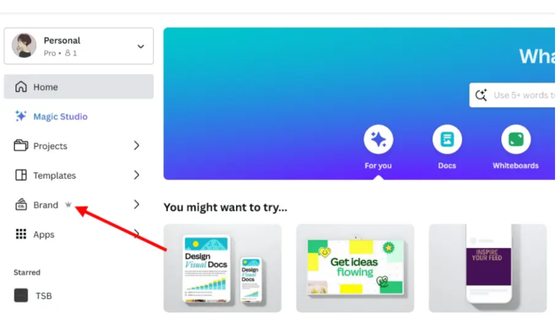
1. Pick Your Two Anchor Colors
Choose one main color and one neutral. Save both of your Brand Kit. These become your visual foundation.
2. Choose Two Readable Fonts
One for headers and one for body text. Keep them simple and store them in your Brand Kit.
3. Build a Starter Templates Folder
Create a promo graphic, a quote-style graphic, and a long-form tip or steps graphic. Keep the layout, colors, and fonts consistent across all three.
4. Add Your Brand Elements
This includes your logo, shapes you like to reuse, and any icons that show up often in your content. Keep them in one folder for quick access. Here at PPN, we use the green-yellow-orange circular design.
5. Create Your Weekly Workflow
Open your starter templates. Duplicate the layout you want. Swap the text, update the image if needed, and export it. Fast. Consistent. Predictable.
Where This Fits Into Your Larger Content Plan
When you have a simple Canva branding system in place, every weekly task gets easier. You’re not choosing colors from scratch or second-guessing every layout. You’re dropping content into a familiar structure that already works.
This is exactly what we list inside Practical Canva Tutorials, but the steps above will get you moving even if you’re starting fresh.
Your Next Step
Set up your Starter Templates folder this week. Fifteen minutes now save hours later. And if you want guided help, everything is ready for you inside PCT.